
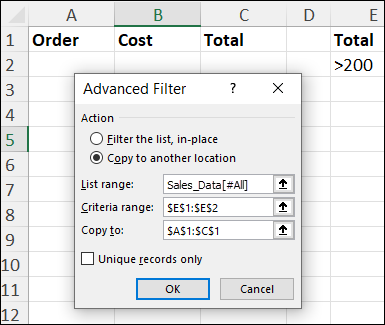
See how to filter Excel data and copy the results to a different worksheet, without using macros.
Video: Filter Excel Data to Different Sheet
In this video, I show how to filter Excel data to a different worksheet in the same workbook, by using an advanced filter. There are written steps below the video.
Tip: To follow along with the video, get the sample file on the Send Data to Different Sheet page, on my Contextures site.
- 0:00 Top Sales Orders
- 1:00 Extract and Criteria
- 1:44 Advanced Filter
- 3:44 Check the Data
- 4:16 Warnings
Step 1: Decide What to Extract
When you use an Advanced filter in Excel, your goal is to show specific data, and hide the rest.
- Specific Data: Tell Excel the the criteria rule(s) for extracting data. A specific region? Product type?
- In this example, I want all the records with total amount greater than 200
- Fields (Columns): Do you want all the fields from the source data, or only specific columns?
- In the extracted data, I only want 3 columns – Order, Cost and Total
Step 2: Create Criteria and Extract Areas
For an Advanced filter, set up two ranges – Criteria area, and Extract area
- Criteria: Field names as headings in first row; rules for each field in row below
- Extract: Field names as headings in first row
Note: For detailed notes on setting up these areas, go to the Advanced Filter page on my Contextures site.
Sample Criteria and Extract Areas
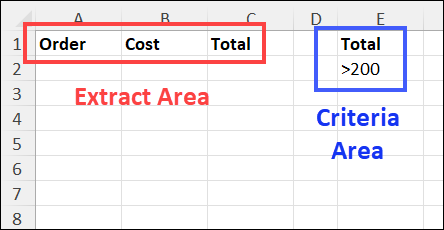
In the screen shot below, I’ve set up the 2 areas, with both on the same worksheet:
- Criteria area: I only orders with a Total greater than 200
- Heading: Total
- Rule: >200
- Extract area: I only want 3 columns: Order, Cost, and Total
Step 3: Run the Advanced Filter
Before you run the advanced filter, it’s important to start in the correct location:
- First, go to the destination worksheet – the sheet where you set up the Extract range
- On that sheet, select a blank cell, that is not near the headings, or any other data
- Next, go to the Data tab and click the Advanced command, in the Sort & Filter group
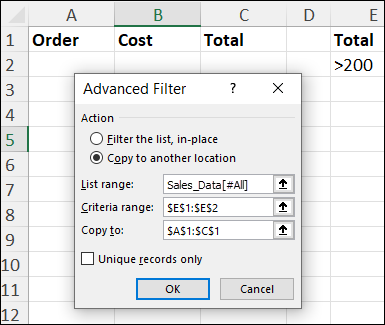
In the Advanced Filter dialog box:
- Select Copy to another location.
- For List range, select the source table on the original sheet
- If the data is a table,
click the top-left corner twice, to include headers (you ight see the table name appear)
- If the data is a table,
- For Criteria range, select your criteria area (heading cell, and rule cell)
- For Copy to, select the extract headings you created on the destination sheet
- Click OK
Instant Results
As soon as you click OK, all the records that meet the criteria will be listed on the worksheet, under the Extract area headings.
This quick speed is why I love using Advanced filters, especially when I’m creating reports with Excel programming!

Advanced Filter Notes & Warnings
Here are a few things to keep in mind when using Excel Advanced filters:
- The Advanced Filter copies values and cell formatting that are directly applied
- It does not copy conditional formatting rules
- Formulas from the source data become values in the copied results
- The extracted data is not linked to the source data.
- Changing the source does not update the copy automatically
- If the data changes, you can run the Advanced Filter again, to get the current results
- Any changes you make in the extract do not change the original table
Get the Sample File
To get the sample Excel file, so you can follow along with the video, go to the Send Data to Different Sheet page, on my Contextures site.
FAQ
-
Will the copied data update automatically when the source changes?
-
No. The Advanced Filter result is not connected to the source data.
-
If the source data changes, run the Advanced Filter again to update the extract.
-
-
Does the Advanced Filter keep formulas and conditional formatting?
-
No. Formulas are copied as values.
-
Direct cell formatting is kept, but conditional formatting rules are not copied.
-
-
Can I copy only some columns to the other sheet?
-
Yes. In the extract area you can use just the column headings that you want to extract, in any order.
-
The Advanced Filter will copy those columns only, in that order.
-