Microsoft Excel Sea Shanties – Lyrics by ChatGPT

It was Robert Burns Day on Wednesday (January 25th), so I asked ChatGPT to write an Ode to Excel, in the style of Burns’ poem, Address to a Haggis. The results were entertaining, and inspired me to prompt it for an Excel song, in the style of a sea shanty. See if you enjoy the results!

Continue reading “Microsoft Excel Sea Shanties – Lyrics by ChatGPT”

Count Exact Matches: Excel Question

Here’s an Excel question from today’s mailbag. MK asks:

  • I am trying to use countif to find the number of times a word exactly appears in a column – e.g. count the no of times “PACK” appeared in a column excluding “pack” etc. I remember seeing a combination of countif and exact functions used in conjunction somewhere, but not able to figure out the right formula.

To solve this problem, MK could use the SUMPRODUCT and EXACT functions in a formula. As shown in Example 6, this technique will count items that are an exact match, including the upper and lower case.

For example, to match the contents of cell C2, in a list in column A, use this formula:

=SUMPRODUCT(–EXACT($A$2:$A$11,C2))

If you have another solution, please post it in the comments. Thanks!

____________

Remove Characters Before Numbers: Excel Questions

Questions are often asked in the comments for the Contextures Excel Blog, and sometimes those questions get overlooked, and lost in the shuffle.

I’ll post some of the questions here, and please add your suggestions for solving the problems.

How Do I Remove Characters?

Here is one of those questions, from a commenter named Joanne:

  • What formula do I use if I want to remove asterisks (*) in front of figures in a spreadsheet column, where the number of digits vary?
  • For example, this is in cell A2:  ***2.00 – ***20000.00

Solution 1 – Formula

To get rid of asterisks in those cells, I’d use the SUBSTITUTE function.

  • For example if the first number is in cell A2, put this formula in cell B2:

      =--SUBSTITUTE(A2,"*","")

  • Then, copy that formula down to the remaining rows

The SUBSTITUTE function replaces the asterisks with nothing, and the two minus signs after the equal sign change the number from text to a real number.

Solution 2 – Formula (Excel 365)

If you have Excel 365, with TEXTJOIN, and the new array functions, there is a formula on my Contextures site that will remove ALL non-numeric characters from a text string.

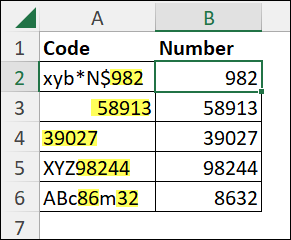
Go to the Combine Text and Numbers page, and in the TEXTJOIN section, you can see the formula and its explanation – Example 6 – Remove Non-Numeric Characters

TEXTJOIN function combines numbers only from cell

Suggested Solution – Find and Replace

Thanks to Jennifer Deacon, who suggested the following Find and Replace solution, if you don’t need to keep the original data, and want to remove the asterisks only:

  • First, select all the cells where you want to remove asterisks
  • Next, use the keyboard shortcut, Ctrl+H, to open the Find and Replace dialog box, with the Replace tab active
  • Then, in the Find What box, type this: ~*
    • The tilde (~) tells Excel to look for the asterisk (*)
    • Otherwise, the * is used as a wildcard, representing “any characters”
  • Leave the Replace With box empty
    • Excel will replace each asterisk with nothing
  • Finally, click the Replace All button, ro remove the asterisks from the selected cells

Your Solution

How would you solve the problem? If you have a different solution, please add a comment, to help Joanne, or anyone else with a similar problem.

________

The Excel Newsgroups Disappeared

helpicon  In the past, I highly recommended the Excel newsgroups as a place to go for help. Earlier this month, Microsoft shut down their newsgroup servers, where thousands of people every month had gone to post their Excel questions. Over the past several years, I spent lots of time in those newsgroups, reading and answering questions. I was able to help people, and learned lots from the questions and answers that were posted there.

The people who visited the newsgroups on a regular basis might have noticed the announcements about the impending shutdown. But most people probably visited the newsgroups only a few times a year, when they needed help. They didn’t see the shutdown coming!

It’s not like going to your favourite store, and finding a "We’ve Moved" sign, with helpful directions to the new location. No, it’s like going to that store, and finding out that the building has magically disappeared overnight. There’s no clue as to what happened, or where to find them.

Where Do You Go Now?

Since the newsgroups disappeared, several people have emailed me, to find out where they went, and where to get Excel help now.

Microsoft Forums

One option is to use the web-based forums that Microsoft has set up:

To post a question or answer in the Microsoft forums, you’ll need to register, and sign in, using a Microsoft Windows Live ID. After you’ve registered, and set up a profile, you can follow Ron de Bruin’s step-by-step instructions for setting up and using the Community Forums NNTP Bridge. The bridge lets you connect to the forums with a newsreader, like Outlook Express or Thunderbird, which I prefer over the web interface.

Public New Servers

If you don’t like web-based forums, you can use a public news server, like http://www.aioe.org/ to access the Excel newsgroups. Even though Microsoft pulled the plug at its end, other servers carry the newsgroups, so there will still be some traffic, although much less than previously.

Google Groups Search

If your search skills are good, you can use Google to find an answer to your Excel questions, with either a general search, or a newsgroup search. If nothing turns up there, the Microsoft Knowledgebase is another good place to search for Excel solutions.

Cry for Help in Twitter

As Twitter becomes more popular, people even post their Excel questions and comments there. There are examples every weekday in my Excel Twitter posts.

Get Good Results

If you’re posting a questions in one of the forums or newsgroups here are a few suggestions for getting the best results:

  • search the forum first,  to see if your question has already been answered
  • some forums have multiple sections for questions — read the overviews, and select the best venue for your question
  • in your question, provide context, such as what version of Excel and operating system, any error messages, etc., and show some sample data, if possible
  • explain what you’ve tried so far, and other suggested solutions that didn’t solve the problem (include links to those suggestions, if possible)
  • check back frequently, to read any replies and answer any follow up questions
  • even if you’re frustrated, stay calm and polite, and remember to thank the people who helped, or tried to help you

Your Recommendations

When I posted about finding Excel help last summer, commenters recommended Stackoverflow.com as a good place to get Excel help. There are other Excel forums too, like the Excel User Group, which is run by Excel MVP Nick Hodge.

Where are you finding or providing Excel help these days, now that the Microsoft newsgroup servers have been shut down? Please share your suggestions in the comments.

__________

Excel Functions Word Search Puzzle

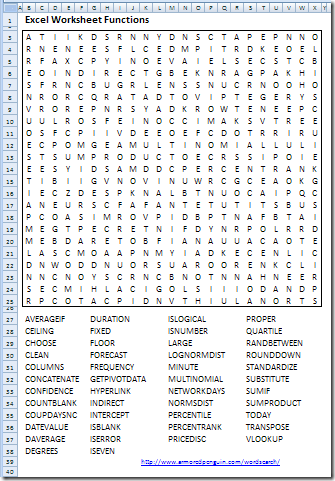
For your amusement, here’s a word search puzzle that’s filled with the names of Excel worksheet functions.

You can work on it at the office, and if anyone asks, just tell them you’re working on some complex Excel functions.

Or, print out copies for all of your co-workers, and use it as an ice breaker at your next finance meeting!

FunctionSearchWord

How to Create the Word Search

To create the word search, here’s what I did:

  • First, I made a list of Excel functions in Notepad
  • I saved that list in text format (txt)
  • Next, I went to the Armored Penguin site
  • Instead of typing my Excel function list on that page, I scrolled down, and clicked the Browse button
  • In the Browse window, I found my Excel function list file, and uploaded it.
  • After that, I filled in the rest of the form, and clicked the Make Puzzle button.
  • The puzzle was created in a few seconds, and I copied the result into Excel.

Get the Excel Function Word Search

To download the word search file, go to the Sample Files page on my Contextures site. In the Functions section, look for FN0070 – Excel Function Word Search.

The workbook has the printable Excel Function Word Search, and an answer key sheet.

Excel Functions

For more information on Excel Worksheet Functions, please visit the Contextures website.

__________________